How to Get Results with Pixel Engine 1.1
Write Good Prompts
Good prompts are temporally dense, objective, and motion-focused. Describe the full sequence of events — what happens first, what happens next, and how it ends. Focus on physical movement, not mood or appearance.
Wizard
"the wizard casts a spell"
 8 frames
Not terrible, but odd — the model has to guess what "a spell" looks like.
"from a standing position. the blue wizard raises his staff above his head. energy accumulates around the staff before a ball of yellow light fires from the staff. The wizard then lowers the staff back down to his neutral starting position"
 8 frames
Boxer
"punch animation"
 12 frames
Two words isn't enough — the model doesn't know what kind of punch, which arm, or how the character should recover.
"Facing right in a boxing stance with purple gloves and blue trunks, the boxer begins by snapping his lead left arm forward in a rapid, straight motion to execute a quick jab. As the fist reaches full extension, a small white impact spark appears at the tip, then the boxer swiftly pulls his arm back to his face. The sequence concludes as he returns to his original defensive guard with his knees slightly bent."
 12 frames
Don't want to craft the perfect prompt yourself?
Use the Enhance Prompt button (the sparkle icon next to the prompt input). It rewrites your rough idea into a model-friendly prompt automatically.
Your Starting Pose Matters
The reference image is part of your prompt. If you ask a character to run but the starting image shows them standing still, the model has to loop through that standing pose — and the result suffers. The model will generalize where it can, but a good starting pose will help in many cases.
Wolf

 6 frames
 6 frames
Knight

 6 frames
 6 frames
Give Your Character Space
Characters need room to move. Space around the character is a visual cue to the model that it should use that space during the animation. A cramped starting image leads to compressed, static motion. More space lets the character reach further, move forward, and fill the frame with motion.
Demon
 10 frames
Character is cramped — motion is compressed and static.
 10 frames
More space — character reaches further, motion trail fills the frame.
Need to add space around your character? Use the canvas controls on the right side of the Animate tab — they’re free and instant. See the Reframe Guide for a full walkthrough.
Cactus
 8 frames
Jumps in place — still a valid result.
 8 frames
Room to jump — the character leaps up into the available space.
Experiment with Frame Counts
The same prompt and starting image can look very different at different frame counts. Below is the same hero slash animation generated at 4, 6, 8, 10, 12, and 16 frames — For this specific animation, 10 seems to do well, while quality drops off at the extremes.
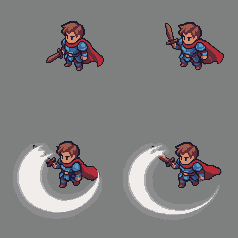 4 frames
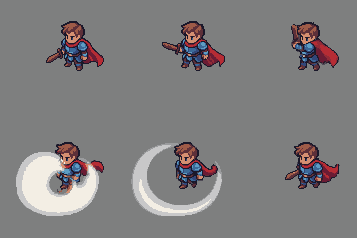 6 frames
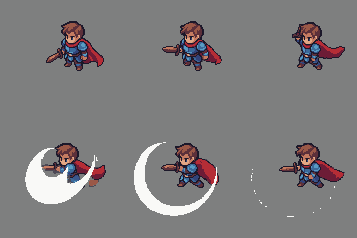 8 frames
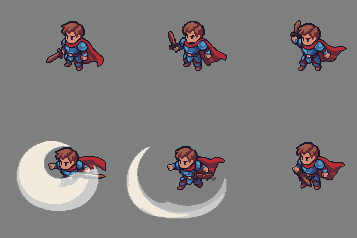 10 frames
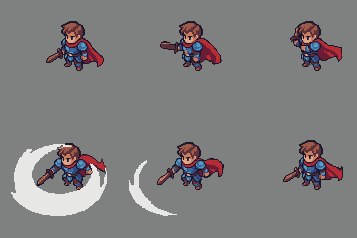 12 frames
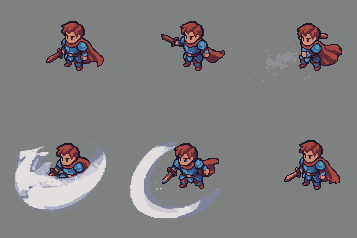 16 frames
Recommended frame counts by action type
| Action | Frames |
|---|---|
| Attack | 8–12 |
| Idle | 4–8 |
| Run | 4–8 |
| Walk | 6–8 |
| Death | 6–8 |
These are rough starting points — experiment to find what works best for your specific animation.
Number of Colors
The Colors input sets the maximum number of colors the animation will be quantized to — not an exact target. The model may use fewer colors than the limit depending on your character.
Too low
Colors get merged together to hit the limit. Your character can lose detail — subtle shading, outlines, and small highlights may all collapse into the same flat tone.
Too high
Each frame is quantized independently, so a high color limit allows small frame-to-frame color variations that show up as flickering or noise in the final animation.
24 colors is a good default for most pixel art characters. Go lower for a more restricted retro palette, or nudge it up if your character has fine detail that is getting lost.
More Examples
A few more animations to show what's possible. Don't be afraid to re-roll — some animations are harder than others, and it's normal to need 3-4 tries with slightly different prompts or frame counts before you get something you love.
 6 frames
 8 frames
 4 frames